Showing posts with label Virtual Machine Manager 2008. Show all posts

Failover Cluster with Highly Available VMs


I thought it would be worth a post on my recent experiences with an iSCSI San, and a Server 2008 Cluster. First off this is using the Release 1 of 2008, not R2 which is currently in BETA and has extended support for iSCSI.

The situation we wanted to use iSCSI San is probably much the same as most, virtualization. We are using Hyper-v along with SC Virtual Machine Manager 2008.

I’ve managed to put this into a nine step process, but if you have questions about any of the steps drop me an email;

1.Setup your SAN, install Server 2008 on desired number of nodes in the cluster, and use the MS iSCSI initiator and MPIO to connect to the SAN. Your SAN provider may provide specific tools to assist with this, such as DELL’s host integration toolkit for the Equillogic units.

2.Validate and create the cluster using Failover Cluster Management

3.Create a very small (1.5GB) LUN on your SAN, this will be used for the Witness Disk by 2008, and holds important configuration information about the cluster. Also create a number of LUNS for hosting virtual machines. Size doesn’t matter too much at this stage as they can be extended using the SAN, and Server 2008 disk management.

4.Connect all the nodes in cluster to the LUNS. Bring online, initialise and format the LUNS. Your best bet is to use a GUID partition, without a drive letter. Otherwise you may end up running out of letters in the alphabet if you have a large number of VMs.

5.Using Failover Cluster Management, add the disks into the cluster, and ensure that the small 1.5GB LUN is set as the Witness Disk. Quorum settings will depend on the number of nodes in the cluster, but the wizard does advise accordingly.

6.Using SCVMM, add one of the nodes from the cluster as a host. VMM will automatically detect that this is a clustered node and add all the other nodes.

7.Ensure that the status of each node shows everything being upto date, and check the properties of the cluster and make sure there is available storage.

8.Create a VM and add it to one of the nodes in the cluster.

9.Test functionality by shutting down the node holding the new VM, and ensure that another node takes over.

When you create your VMs, be sure to set them as highly-available. The above should give you the ability to create highly available VMs, ensuring that if node or nodes in the cluster fail, the VMs will continue to function.

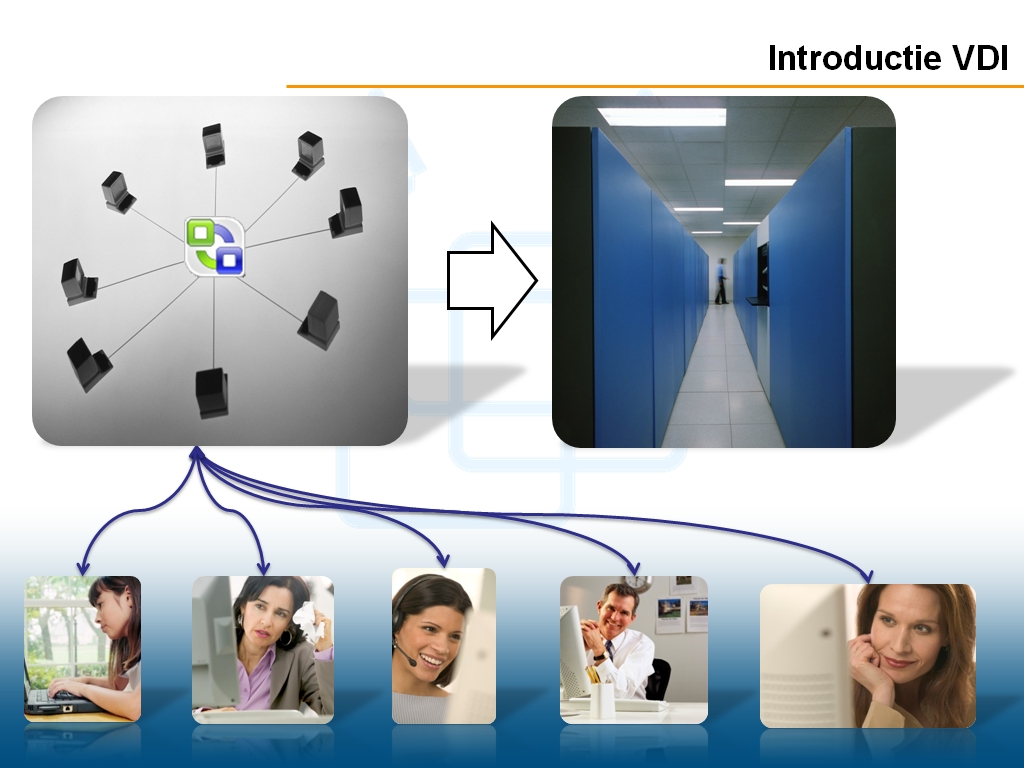
Microsoft VDI & MED-V

Whilst Microsoft seem to have published a lot of corporate vision statements about their VDI (Virtual Desktop Infrastructure) vision, they don’t actually seem to provide much in the way of technical roadmaps. As I am currently looking to deploy a full VDI, this is something I have been looking into closely, and here are some of my conclusions.


What we are looking to achieve; is a full desktop experience from a remote location. Ideally, this should be via a web browser, on any remote PC. The application for this is to allow staff to work from home or whilst on the move.
Currently a member of staff sits at their desk, and logs into an XP machine, and is presented with the pre-defined desktop, along with their redirected 'My Documents', their home area, and any crucial settings which we might choose to deploy. Of course they also have the core set of software such as Office, and MIS applications. What we want is an identical experience (or as near as possible) from a remote PC.

Microsoft's "vision" for this identifies several of their key technologies for this. Virtual Machine Manager, the System Centre Suite and Server 2008 Terminal Services. What they don’t yet seem to have is a way to put all this together to produce a working solution.

So what are the possible ways forward?

• Create a virtual PC for each member of staff who requires working from home, set the PC identical to the way any other staff PC is configured, and simply allow staff to Remote Desktop into the PC using ‘Remote Desktop. The PROS of this solution are that it’s simple to configure, and pretty much fool proof for the user. The cons are that it requires potentially a vast number of VMs, and systems management

• Allow staff to Remote Desktop into their own physical PC. PROS even easier to setup. CONS requires workstations to be left powered on, 110% chance of it not being workable!

• Use scripted HyperV, via the Virtual Machine Manager web portal, and powershell, to create VMs on the fly to start them up & shut them down according to usage. PROS sleek and sexy. CONS very complex to setup, potential for huge number of VMs

• Use Virtual Machine Manager / Hyper-v with Citrix. PROS Seems to have a reasonable amount of backing from MS partners. CONS Expensive, expensive & expensive!

We may have to revisit some of the above, but currently the leader is none of the above....it’s a product called MED-V which is currently in BETA. It’s another product “acquired” by M$ in a similar way to softgrid, so I can only assume it will become part of the System Centre Suite very soon.

The way it works (in principal) is that you create a Virtual PC (using Virtual PC 2007), and configure it as required. You then upload this to the Med-V server, which in turn clones it for clients over the net when the log onto the MedV server. This gives the user what appears as a virtual PC running on their desktop.... when running in full screen mode you are essentially sat in the office.
Obviously the setup is a little more complex as IP addressing, DNS and Active Directory all come into play to prevent conflicts, but the MED-V product does work... flawlessly so far once setup.

There are cons however. It requires a small client on the users machine, and the first time the user connects it takes an index of the users local PC. This is to reduce the amount of traffic which MEDV uses during connection. i.e. if you have a file called wibble.dll on your local pc, it won’t bother dragging it over your 500k connection every time a MEDV session requires it. This initial index takes a good 30 minutes on average. After that the user can expect to connect in the same time it takes to boot up a virtual PC.

Support for MEDV is currently non-existent, and you can expect to do a lot of self research if you are going to evaluate it. The setup process is complex and requires 2 server and at least 2 workstations, plus a virtual PC. I’m looking forward to an official release date, but with a bit of luck e may deploy the BETA to test users within a couple of months.

VMM2008 SSP - Shared ISOs

We have noticed that when Self Service Portal users are trying to alter the properties of one of their VMs, they have an option to mount an ISO. Down at the bottom of the options is a tick box which says "SHARE" rather than copy.

Normally if you mount an ISO, the ISO file will be copied into a subfolder of the VM before it is mounted. For a 4Gb ISO files (such as SuseLinux) this can take several minutes. So the obvious advantage of using the SHARE option is that it just uses the original ISO rather than creating a copy.

However....there is a catch. The option isnt available if your host if a Hyper-V server. I have logged this with MS via Technet; http://forums.microsoft.com/TechNet/showpost.aspx?postid=4167342&siteid=17

It seems to be a known issue, but as yet they havent given a resolution date.

VMM2008 Slow Creating VMs


Following on from a previous post on this topic, I have finally (after around 6 weeks of trying) been able to find a resolution to the issue I previous posted about here.

It turns out this this was not actually an issue with VMM being slow installing VM Components. VMM was actually being slow at reading the drives on the host server. thankfully someone from Microsoft jumped onboard (thanks Hector Linares), and was able to confirm that VMM2008 does have this issue if any of the following conditions are met;

VIRTUAL MEDIA: If the host server has any virtual media such as a Dell DRAC or Virtual Floppy.

GPT DISK: If any drives in the host server are using GPT Partition table rather than MBR

UNINITIALIZED DISK: If any of the disks are not initialized.

OTHER MOUNTED VHDs: If a VHD has mounted incorrectly or not dismounted correctly.

In our situation the problem was actually related to GPT. The server has 3 drives, 2 set up as MBR and one set up as GPT. Converting the one GPT disk to MBR instantly fixed the problem, and VMM now creates VMs in under 10 seconds.

As a side note, GPT drives was introduced by MS in Server 2003 SP1, but is really being pushed with server 2008. See this article by MS.

Hopefully MS will have a fix soon, but as of Nov 2008 there is no way of converting an MBR disk to GPT without loosing the data.

VMM 2008 Insists On Installing Components

I appear to have a few people at Microsoft scratching their heads with an issue we are experiencing....and I dont think I'm the only one; When we create VMs (no matter how), VMM insists on a step called "installing VM components". This is when creating a VM on the Hyper-V host. It is my understanding that VMM should not carry out this step, if for example you are creating a machine with a blank HDD, or with a non supported OS such as Linux. However, this step runs every single time a VM is created. I will add that eventually it times out (15 minutes or so), and the VM does function perfectly. This might not seem an issue generally, but in a classroom where students may wish to create a VM from the portal, it becomes a problem. Firstly students tend to be a little inpatient....and secondly they cannot see the job list in the same way an administrator can, and probably give up thinking that it isnt going to work. We have tried creating a VM from a template....same problem, with a blank small HDD, large HDD, a template with "noi customization required".....but every single time VMM does the step and the creation hangs. Interestingly the error log says;

----------------------------- Warning (13226) Virtual hard disk W:\test907am\Blank Disk - Small.vhd cannot be mounted on host trent.students.blackburn.local because it conflicts with other disks. Recommended Action Wait a few moments and then try the operation again. -----------------------------

You can see my full report on Technet here; http://forums.microsoft.com/TechNet/ShowPost.aspx?PostID=4088882&SiteID=17

VMM2008 Released

I now got around to upgrading the Beta of Virtual Machine Manager 2008, to the RTM version. MS have made quite a few changes....improvments.... and introduced one or two bugs (see my next post).

The splash screen for VMM Admin Console has changed significantly, and previous bugs which existed in relation to the storage of ISO's in a VMM Library have been corrected.

The porcess of Physical To Virtual Conversion on Windows 2000 machines has been introduced. More specifically Microsoft have enabled a feature called Offline Conversion. This basically installs a Windows PE images onto the source, boots it up into Windows PE to do the conversion, then creates it as a VM..... works a charm, although in testing we experienced downtime of around 1 hour as it was an old PC.

Another thing MS have fixed significantly is the web portal, which no longer takes 20 minutes to log in to. You can now give users the ability to create their own BLANK VMs, something which wasnt possible in the Beta, but will be ideal in a classroom scenario.

If you are upgrading from VMM2008 Beta to live, a word of warning. The agent on all your hosts will also require upgrading. This was very smooth for our test 2003 host, but became extreamly complex for a server 2008 hyper-v host. To cut a long story short... we had to manually remove the VMM agent from the host, uninstall hyper V, upgrade to the latest version of Hyper-v, then re-install the VMM agent. It worked, but there was a period of panic when we lost control, and ability to control any of the VMs on the HyperV host.

All in all this release is looking really good, and offers the obvious advantage of well supported management of Server 2008 HyperV Hosts. Sadly still no support from USB devices on a host/server (dongles etc), and no support for non domain member servers.....but you cant have it all.